A workspace with an assistant built in
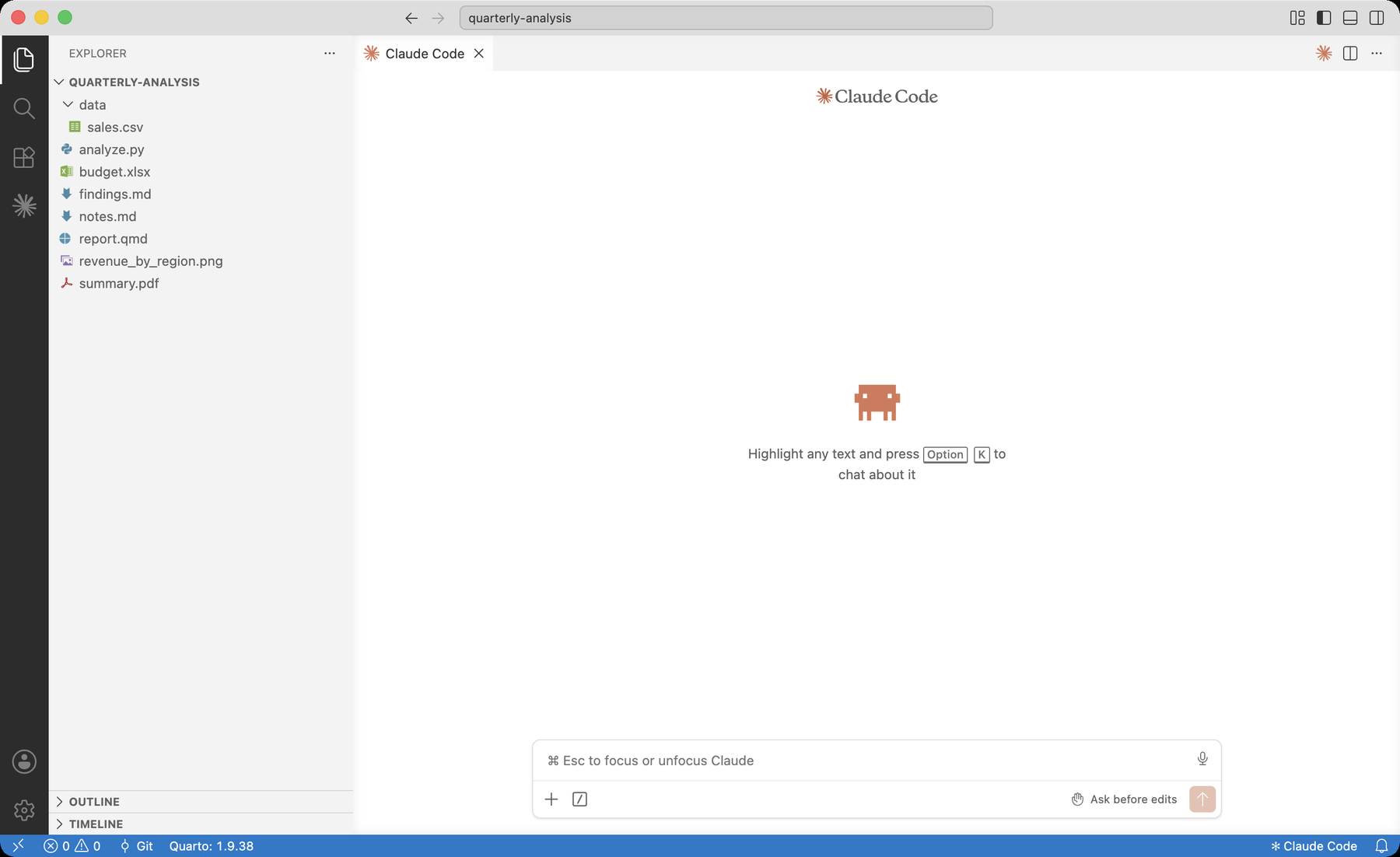
Academic Studio is a place to work on your project files with Claude, side by side.
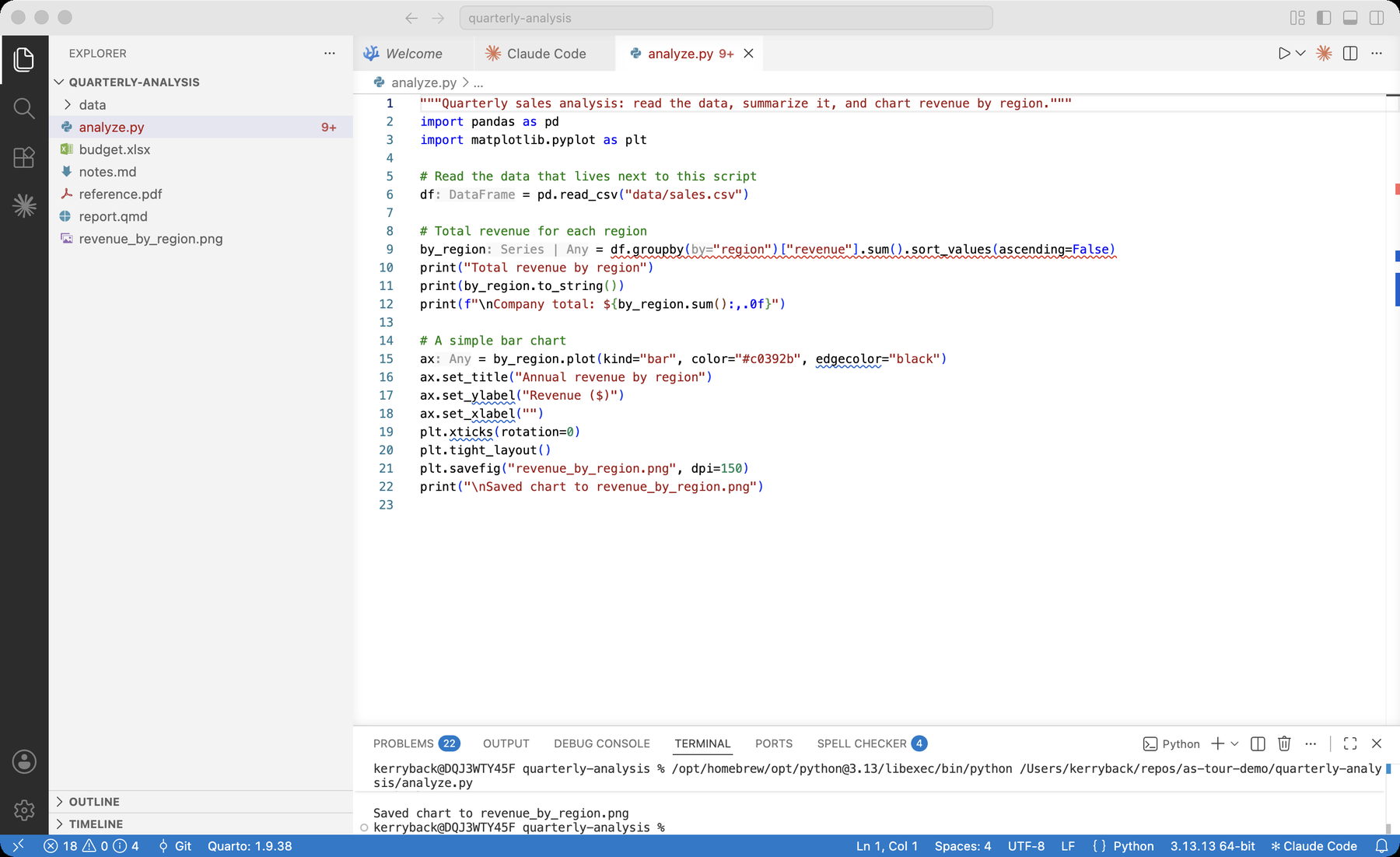
- Your files are on the left, Claude is on the right
- Open a file and it opens as a tab in the right pane
- You can ask Claude to do the work, or do it yourself
- Under the hood it is VS Code — but set up to be simple, with Claude ready the moment it opens
Move through this tour with the → arrow keys, or the arrows at the bottom-right.
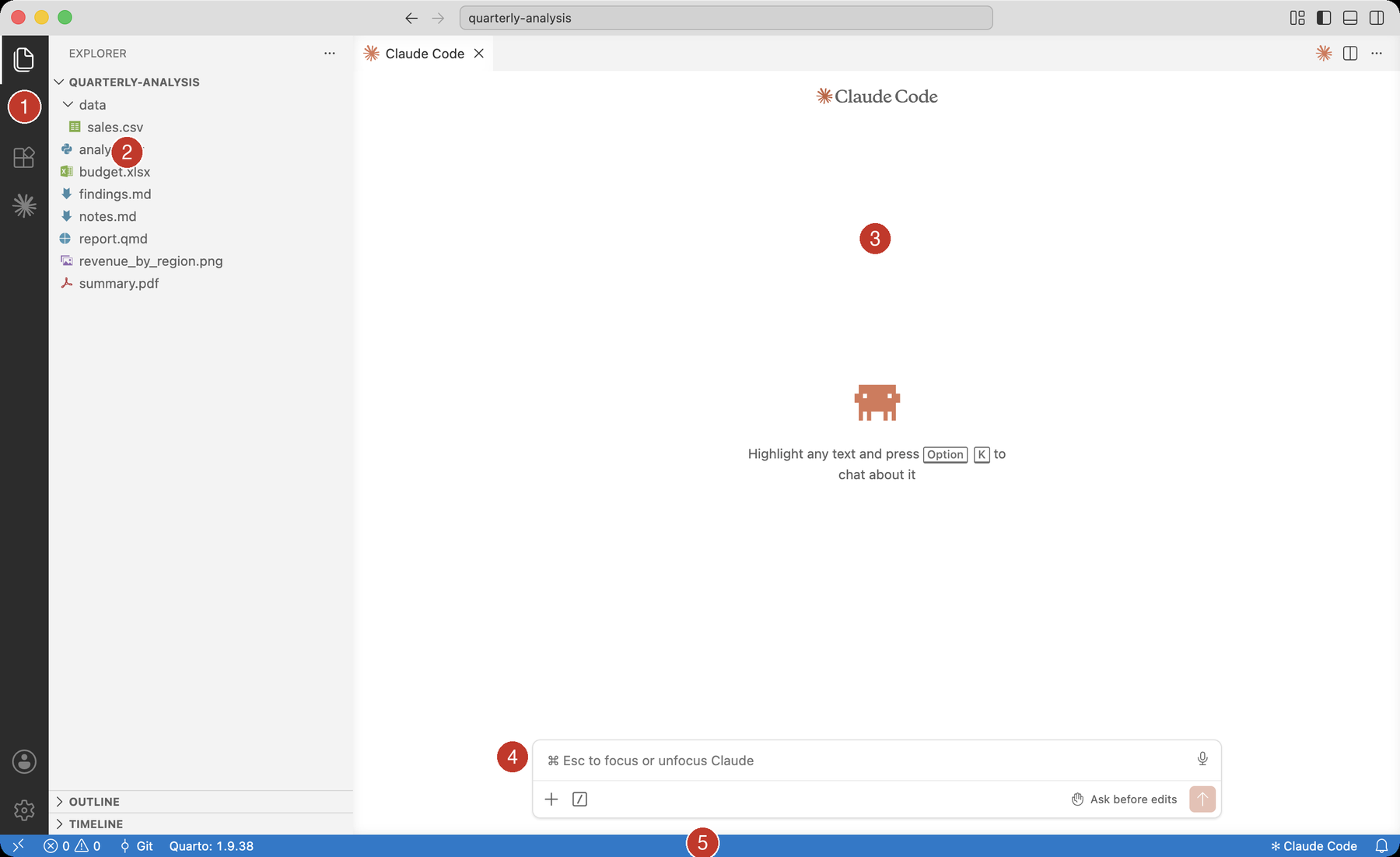
The five areas of the screen
- Activity Bar — icons on the far left switch what the side panel shows
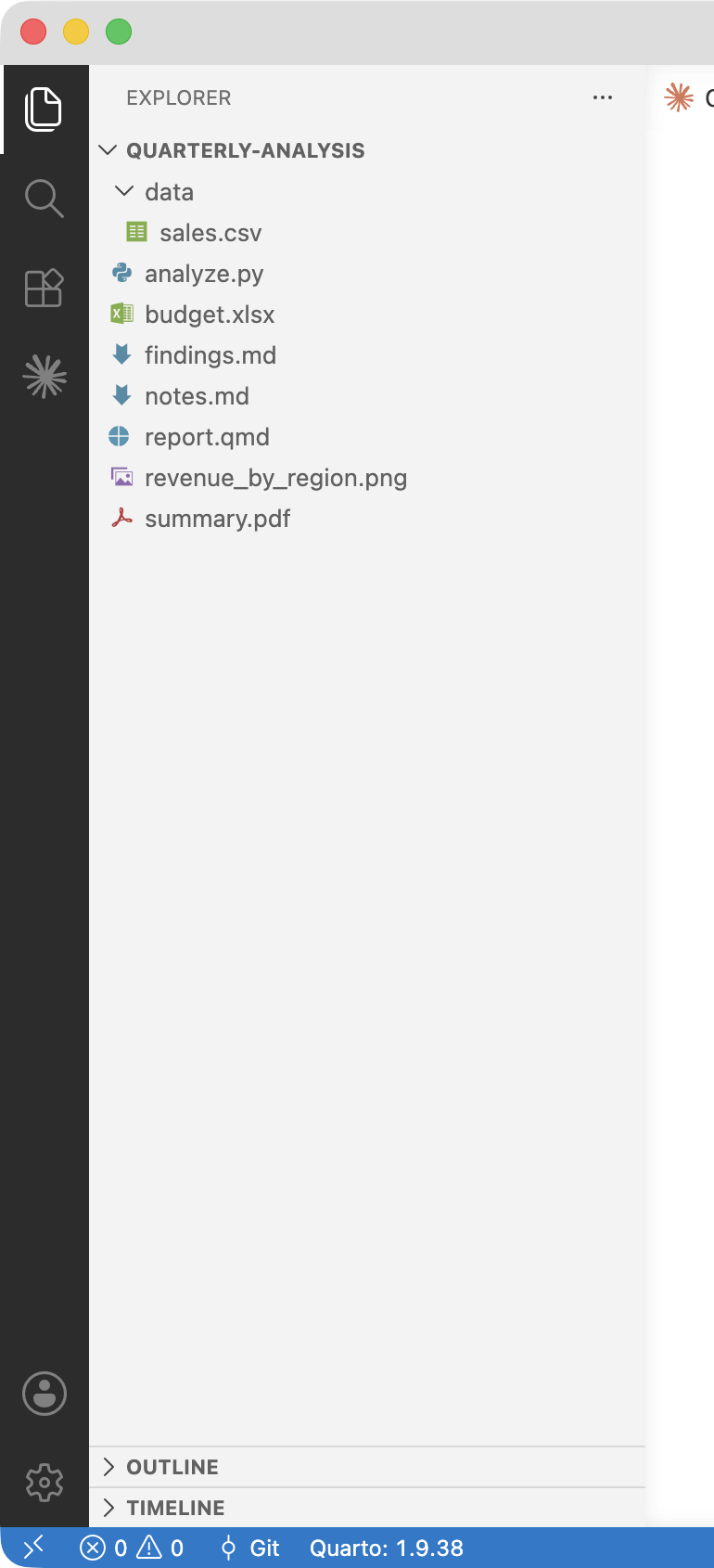
- Explorer — the files in your project folder
- Main panel — where your files open and where Claude lives
- Ask Claude — type your request here and press Enter
- Status Bar — small readouts along the very bottom
Menus and toolbars
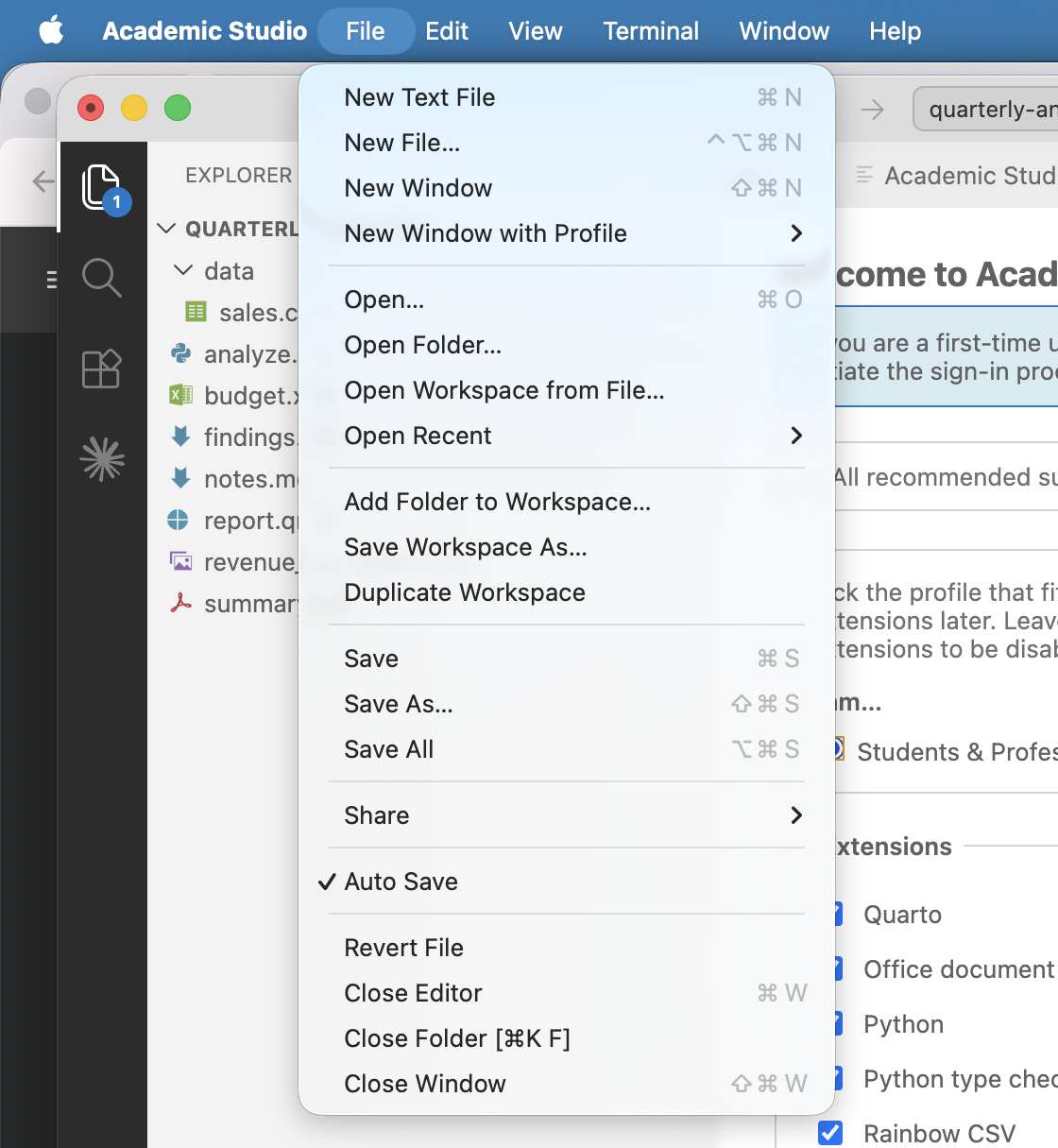
The menus (File, Edit, View, Terminal, Help, Claude) have been trimmed to the essentials.
Toolbars are the small rows of buttons at the top of the editor. When you open a file, buttons that make sense for it appear — a Run button for Python, a Preview button for Quarto.
Settings, if you ever need them
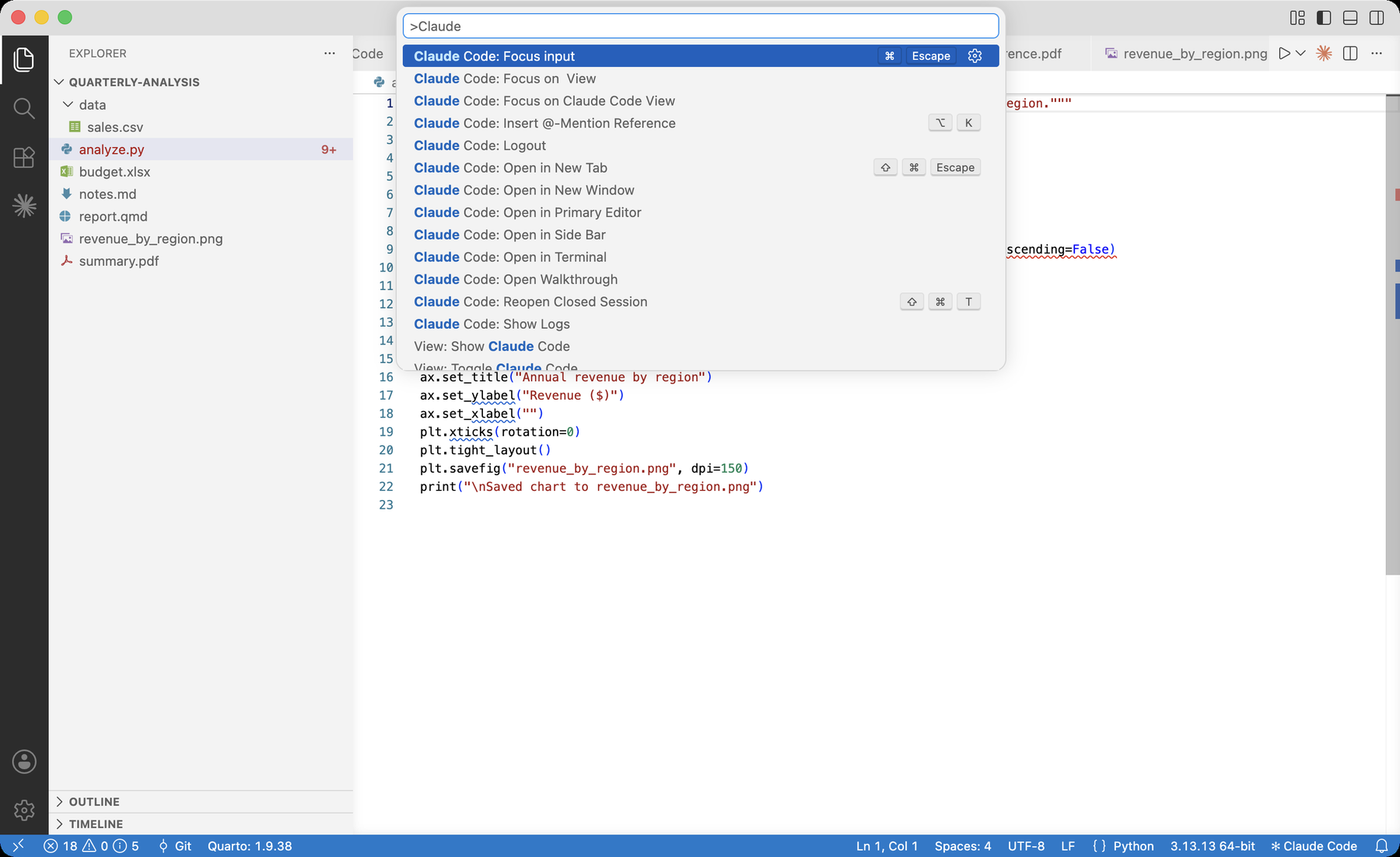
Settings is where you can change text size, word wrap, and the like. Most people rarely open it.
The quickest way is the Command Palette: press F1 to bring up a search box that can run any command, then type “settings.”
Or simplest of all, ask Claude to change a setting for you.
The Terminal
A terminal is a place to type commands for your computer to run — installing a program or checking a result.
Open one with Terminal → New Terminal, then type the command and press Enter. Or, simplest of all, just ask Claude to run commands for you.
When you first open it
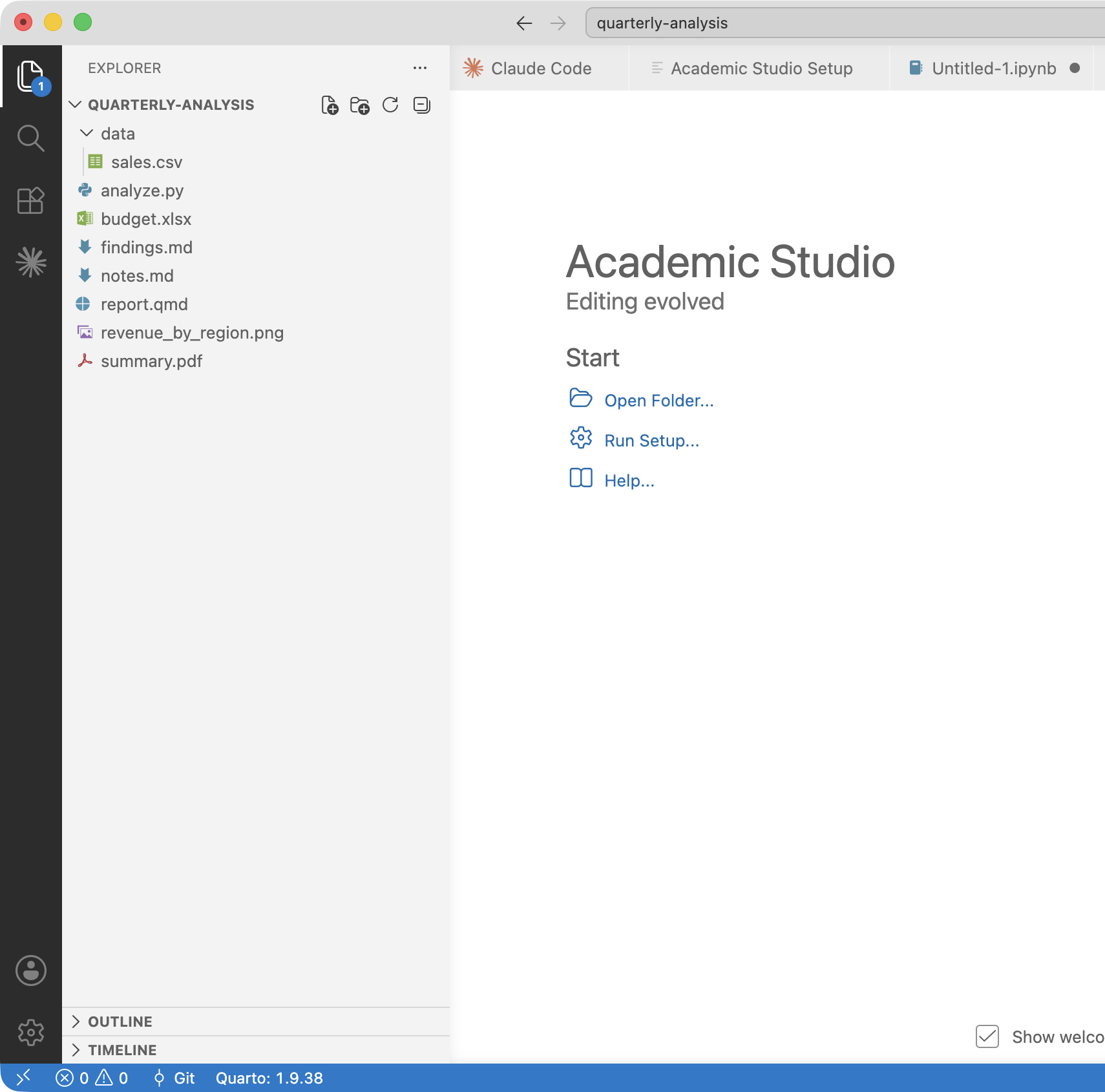
The first time you open Academic Studio you see a Start page. From here you can:
- Open Folder — choose the project you want to work on
- Run Setup — install tools and pick your profile
- Help — open the written guide
Claude opens automatically alongside it.
Open a folder, and your files appear
Everything in Academic Studio happens inside a project folder. Choose one with File → Open Folder, and its contents show up in the Explorer.
- Click a file to open it in the editor
- Your work saves automatically
- Your Claude conversation stays with the project
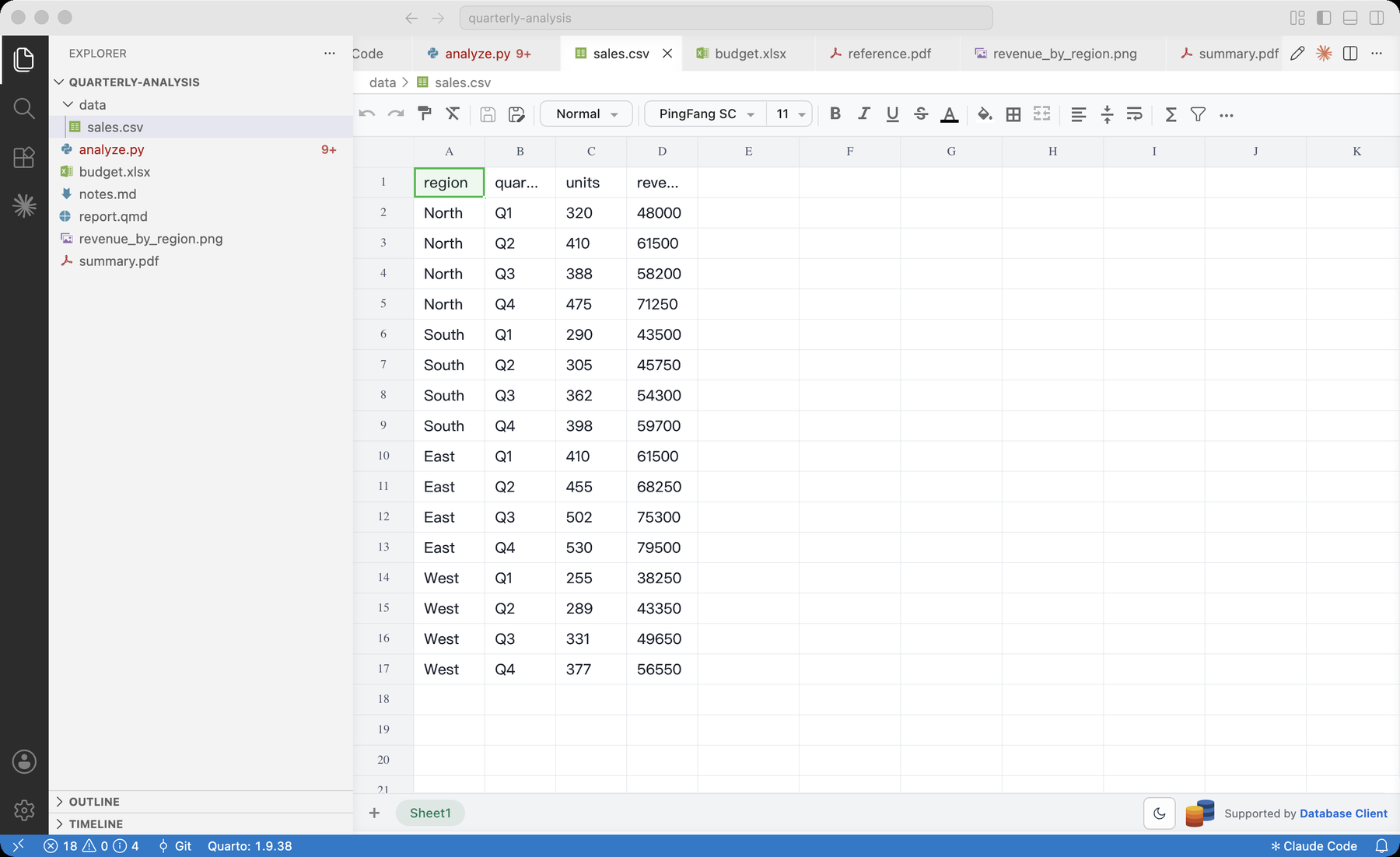
Viewing spreadsheets, PDFs, and data
You do not need Excel or a PDF reader — Academic Studio previews these files for you.
Spreadsheets, CSV data, PDFs, and Excel files all open in built-in viewers.
Claude is ready the moment you open the app
The panel on the right is Claude Code. Type what you want in plain English and press Enter.
The fastest way to work: tell Claude what you want — “summarize this data,” “make a slide deck from these notes,” “fix this error” — and let it do the work.
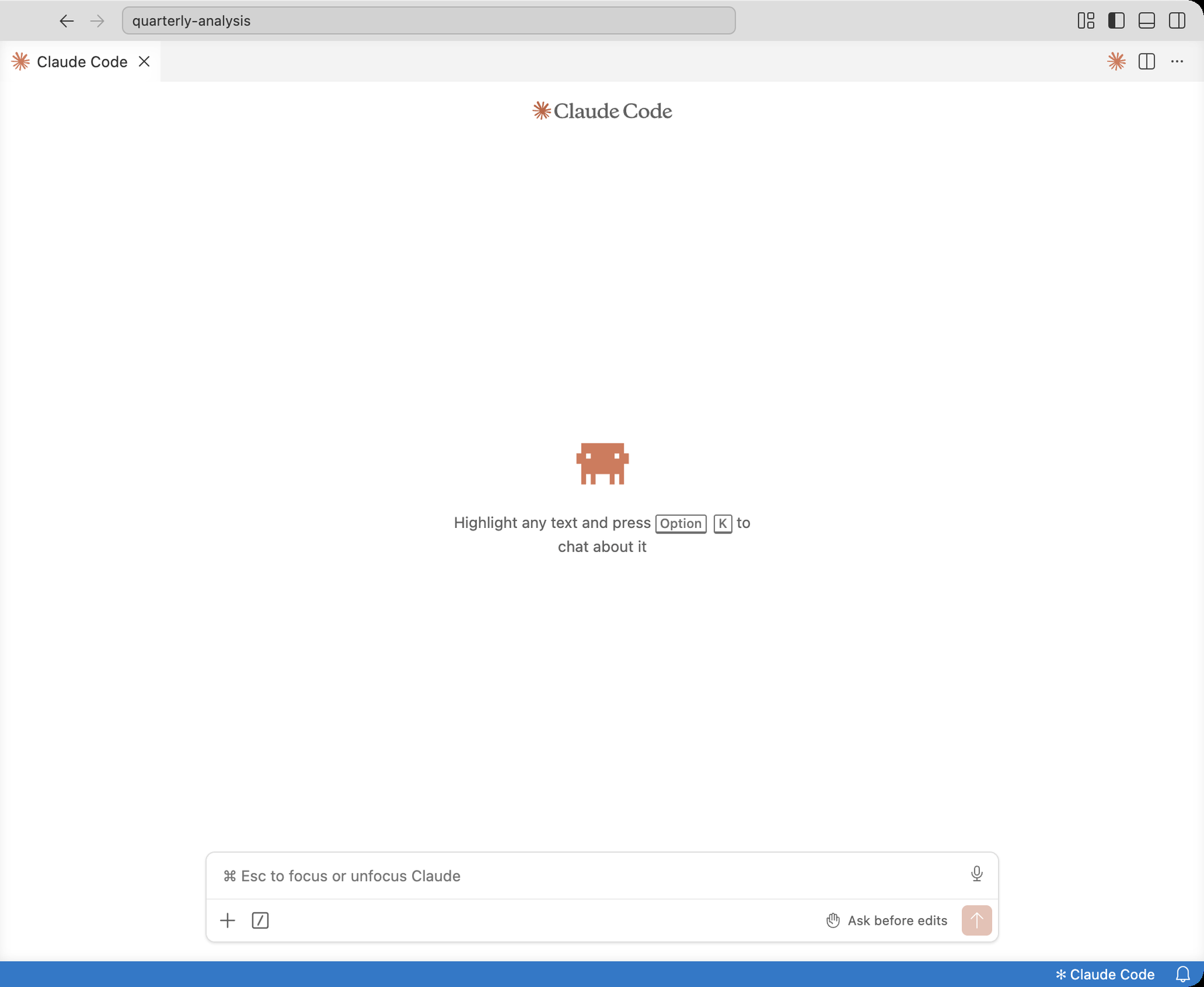
A paid Anthropic account is required. The first time, type /login to sign in.
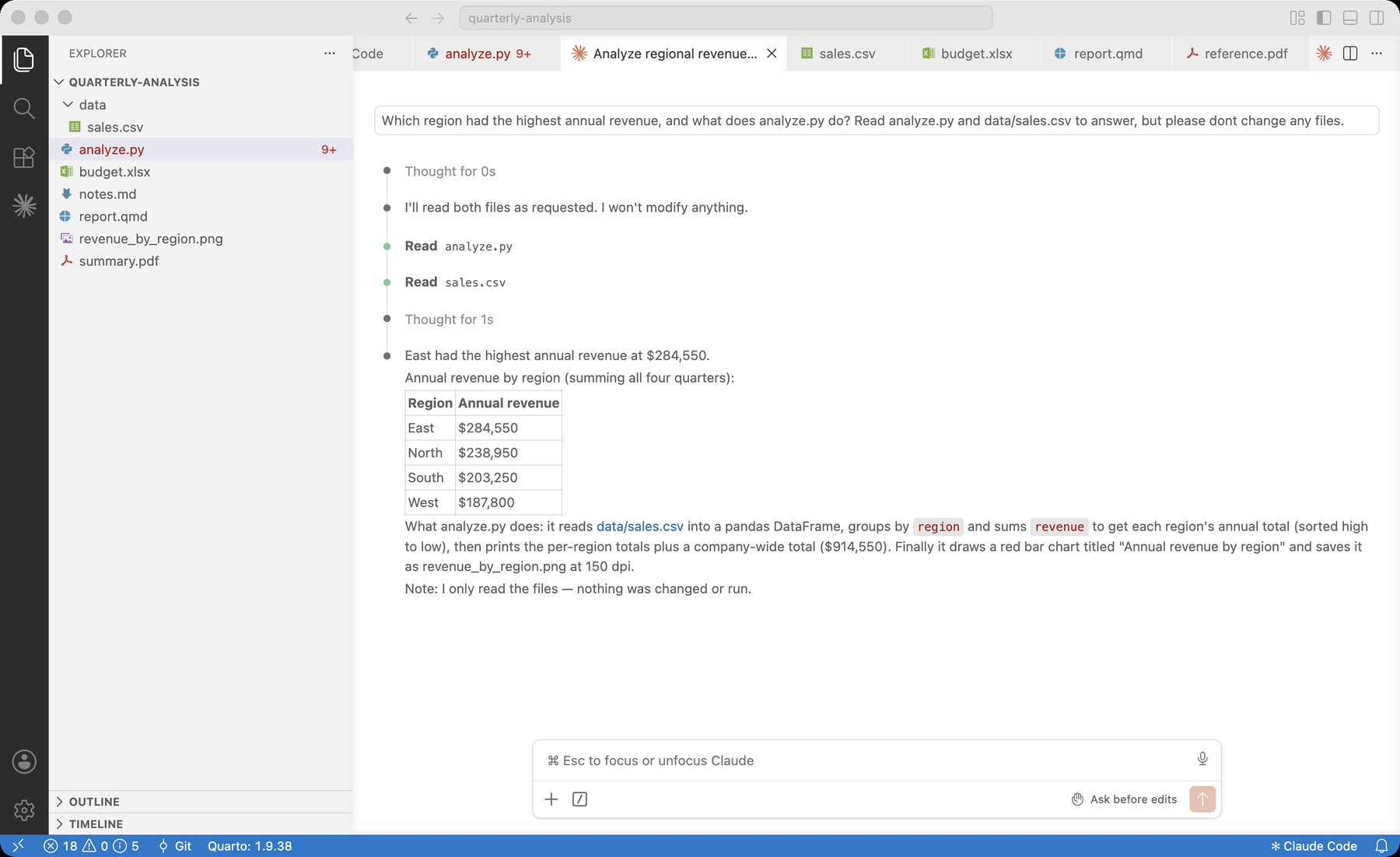
Claude can read your files
Because Claude works inside your folder, it can open and read your files to answer questions — no copying and pasting.
It also works like a smart search over your documents: ask “which file mentions the 2023 budget?” and it finds the right one.
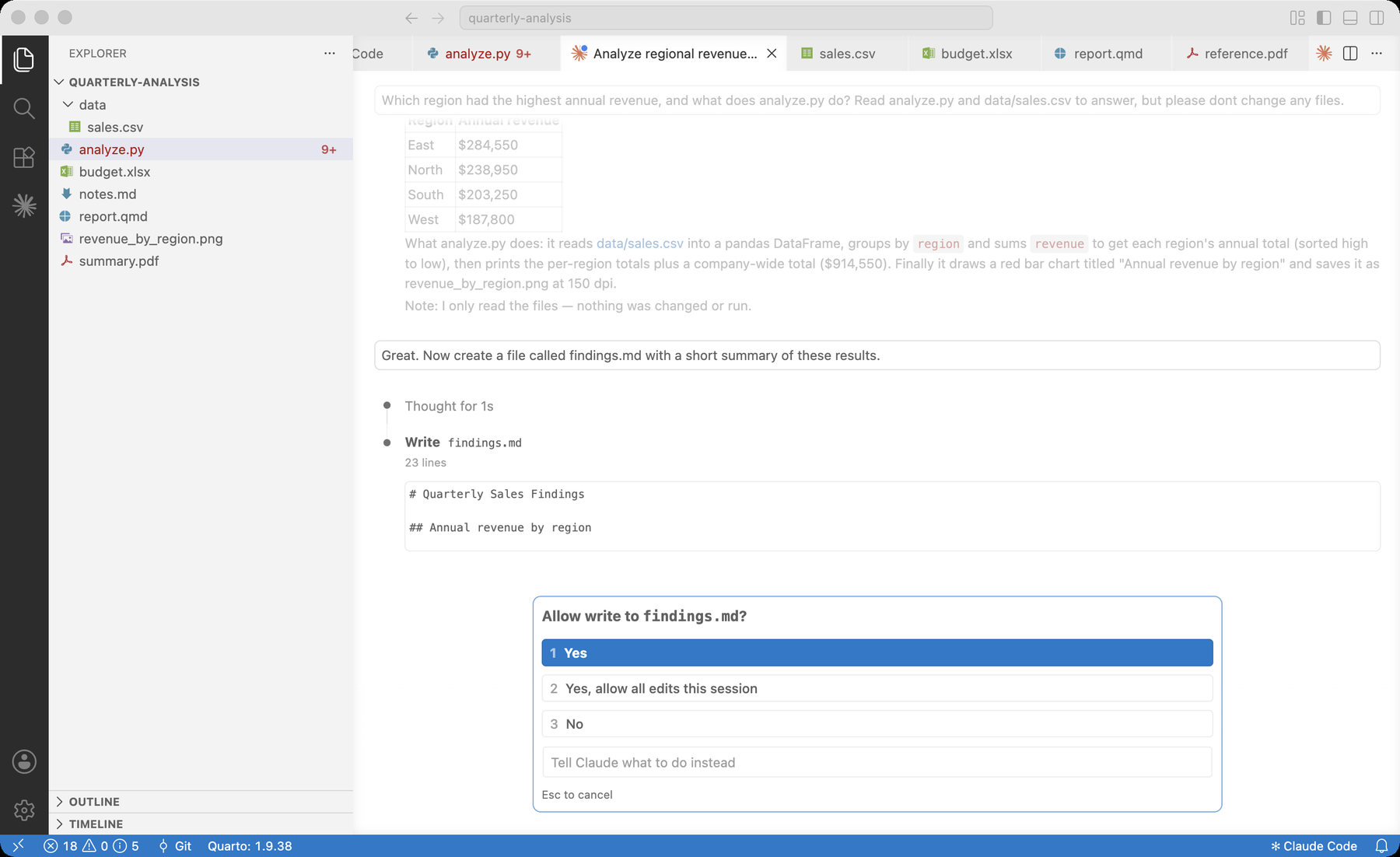
Claude can write and edit files
Ask Claude to create or change a file and it writes it for you, right there in your folder.
By default it shows you what it plans to do and waits for your OK — so you are always in control.
Run Setup: pick your profile, install the tools
Open it from Help → Run Setup. One screen lets you:
- Choose a profile (Students & Professionals, or Faculty) which turns on the right set of extensions
- Install supporting programs — Python, Node.js, Quarto — with a single click
- Install additional packages — Finance Data
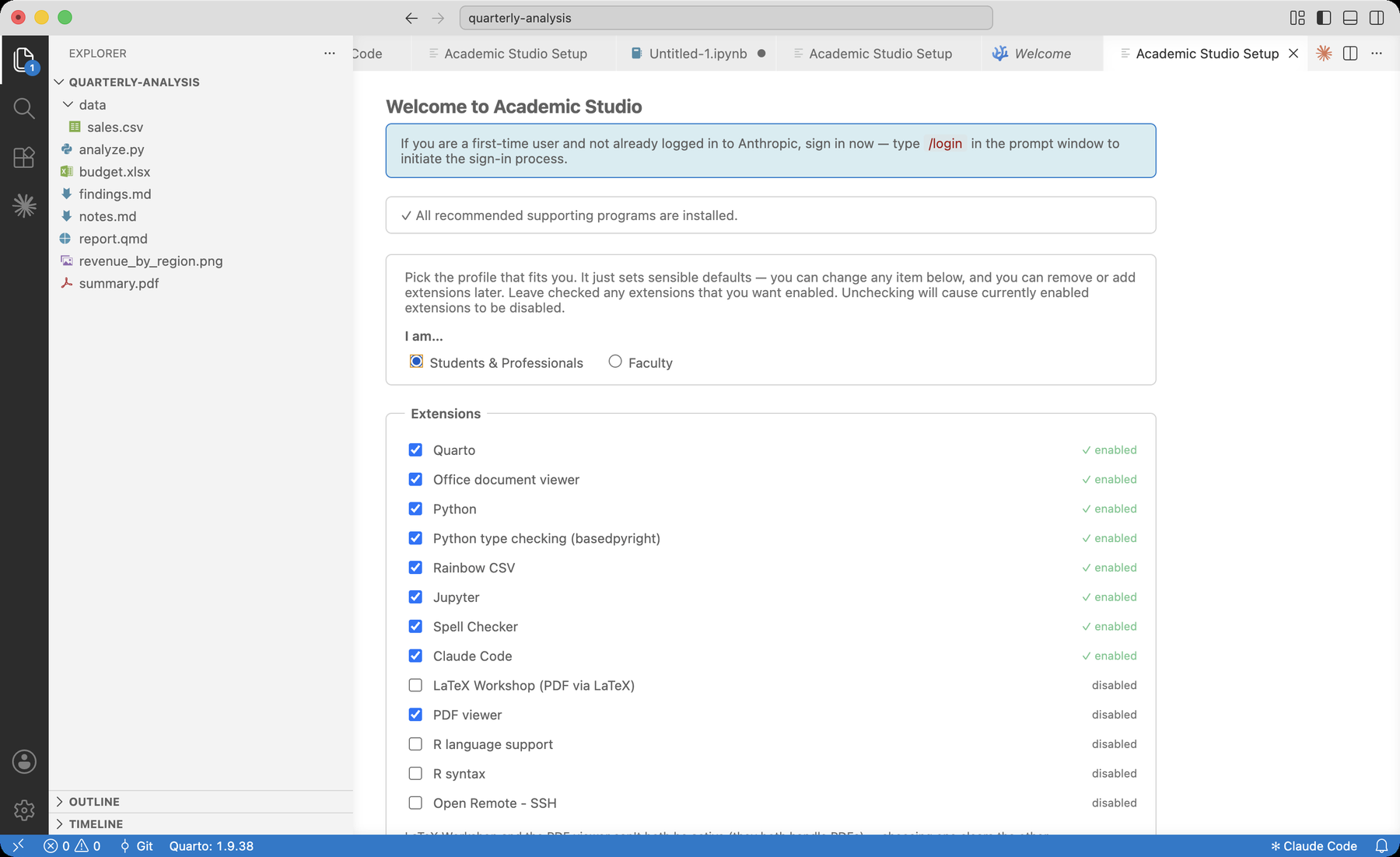
You can reopen it any time to add tools or change extensions.
Where to get help
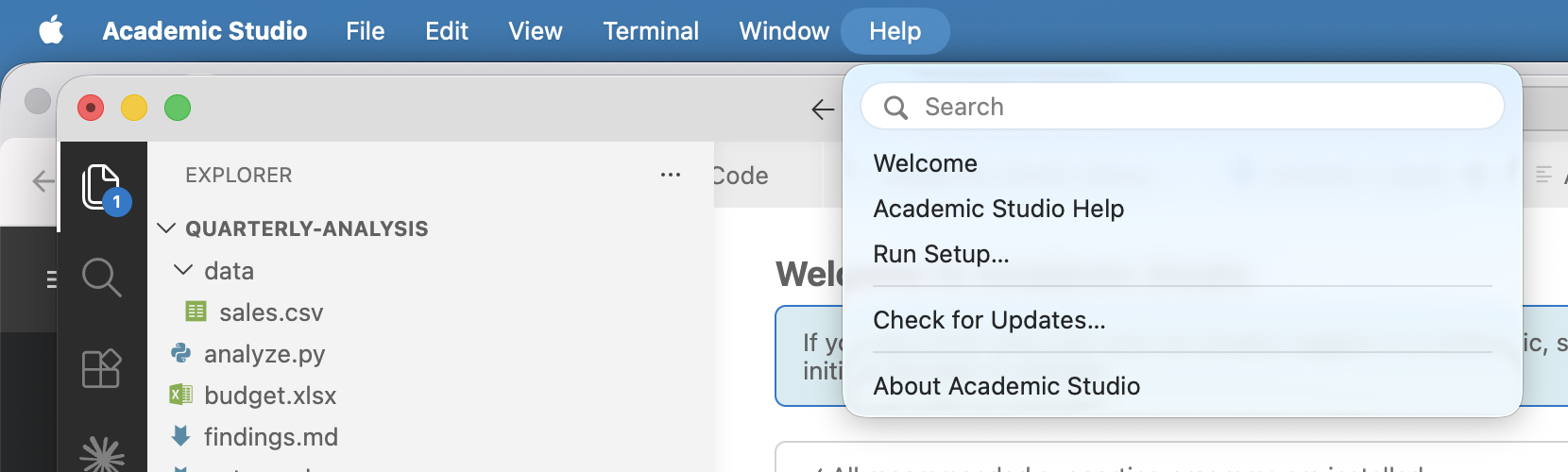
The Help menu has:
- Tour of Academic Studio — this tour
- Academic Studio Help — a written guide
- Run Setup — the setup screen
- Check for Updates — downloads a newer version when one is out
And of course, you can always just ask Claude.
You are ready
A few things to remember:
- Open a folder, and your files show on the left
- Type what you want to Claude on the right — it can read and write your files, run Python, and build documents
- Run Setup (in the Help menu) installs anything that is missing
- The Claude menu helps you manage skills, connectors, and permissions

Welcome to Academic Studio.
When in doubt, ask Claude — tell it what you want in plain words.
For help anytime, point Claude to https://academic-studio.com.